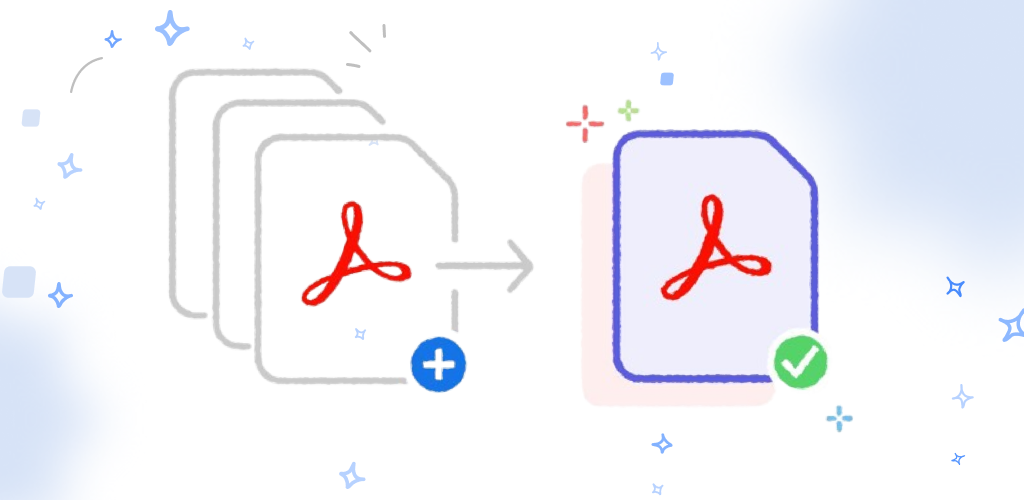

Somewhere between "I have a bunch of photos" and "I need one document," most people hit the same wall: your phone's camera roll is full of individual images, but the form you're submitting wants a single PDF. Or the reverse — you've got a PDF and need each page as a standalone image to drop into a slide deck. Both are more common than you'd expect, and both take under a minute with the right tool.
Converting images to a PDF
This is the more common direction — turning multiple photos (like scanned pages, receipts, or ID photos) into one clean PDF document.
Step by step
- Open the Images to PDF tool in DocKit, or use the browser-based version if you're at a desktop.
- Select your images. Choose them from your camera roll or files — you can typically select several at once.
- Arrange the order. This is the step worth slowing down for: the order you select images in usually becomes the page order in the final PDF. Drag to reorder before converting if it isn't already right.
- Convert. The tool generates a PDF with each image as its own page.
- Export. Save it to your files or share it directly.
Common use cases
- Turning a scanned paper form into a submittable PDF — you photographed each page separately and need one file to email or upload.
- Combining receipts for an expense report — several photos of receipts, one PDF for your finance team.
- Building a photo-based portfolio or lookbook — images in a fixed order as a single shareable document.
- Submitting ID or documentation — many application forms specifically require a PDF, not individual JPEGs.
Mistakes to avoid
- Photographing at an angle. A crooked scan looks unprofessional and can make text near the edges hard to read. Hold your phone directly overhead and use a flat, well-lit surface.
- Mixing image orientations. If some photos are portrait and others landscape, the resulting PDF pages won't have a consistent look. Rotate outliers to match before converting where possible.
- Not checking resolution. Extremely large images can bloat file size unnecessarily; extremely low-resolution ones can make text illegible once converted. Your phone's default camera resolution is usually a good middle ground — no need to use the highest setting available.
Converting a PDF back to images
Less common, but just as useful — sometimes you need a specific page as a standalone image instead of buried inside a PDF.
Step by step
- Open the PDF to Images tool.
- Select the PDF you want to convert.
- Choose which pages to export — all of them, or just the ones you need.
- Convert. Each selected page becomes its own image file.
- Save or share the resulting images individually.
Common use cases
- Pulling a single page or chart out of a longer report to drop into a presentation slide.
- Sharing a page via a platform that doesn't accept PDFs — some messaging apps and social platforms preview images far better than PDF attachments.
- Archiving specific pages as thumbnails for quick visual reference without opening the full document.
Which format should you actually use?
If you're unsure whether to keep something as a PDF or convert it to images, a rough rule of thumb: use PDF when the document needs to stay a document — multiple pages, meant to be read in order, possibly printed or signed. Use images when you need a single visual — a chart for a slide, a page to text someone, a graphic for social media. Converting back and forth is nearly instant either way, so it's rarely worth agonizing over — pick based on where the result is going next.
Frequently asked questions
Will converting images to PDF and back lose quality? Converting images into a PDF doesn't re-compress them meaningfully, so quality is preserved. Converting a PDF's pages back to images renders each page at a set resolution — if you need a very high-resolution image, check that the tool you're using lets you choose export resolution rather than using a low default.
Can I convert just one page of a multi-page PDF to an image? Yes — most tools, including DocKit, let you select individual pages rather than forcing an all-or-nothing export.
Does this work without an internet connection? Yes, both directions run locally on your device, so neither requires uploading your images or documents anywhere.
Try it now
Both the Images to PDF and PDF to Images tools are free, work offline, and process everything directly on your device.